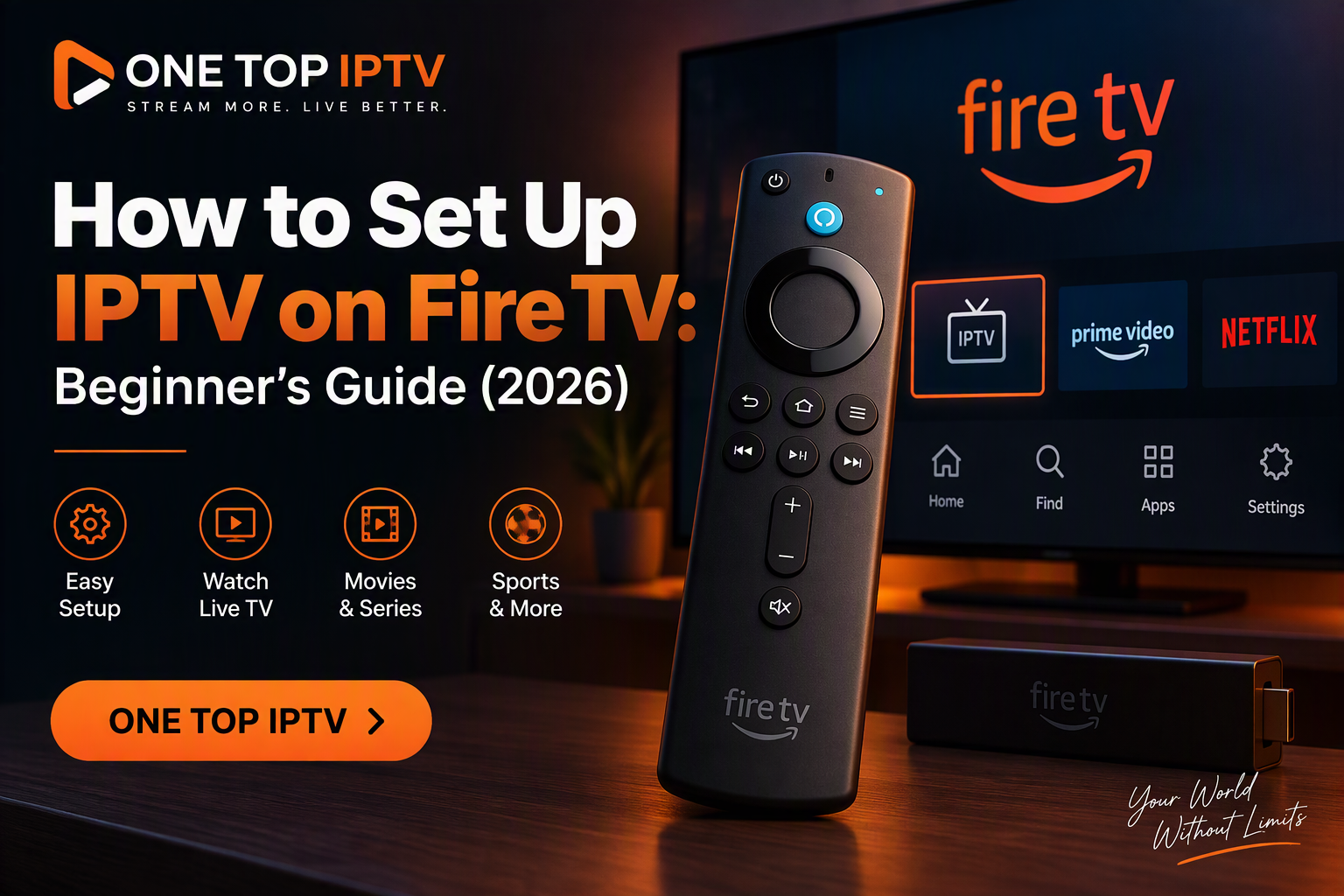
How to Set Up IPTV on Fire TV: A Beginner’s Guide
Amazon Fire TV devices are popular streaming platforms because they’re easy to use and support a wide range of entertainment applications. If your IPTV provider supports Fire TV, you can generally configure a compatible IPTV player by following a few straightforward steps.How to Set Up IPTV on Fire TV
This guide explains what you’ll need, the general setup process, and how to get the best streaming experience.
Before You Begin
Before setting up IPTV on your Fire TV device, make sure you have:
- A compatible Amazon Fire TV device.
- A stable internet connection.
- An IPTV subscription from a provider of your choice.
- The connection details supplied by your provider (such as supported login credentials or playlist information).
- A compatible IPTV application recommended or supported by your provider.
Install a Compatible IPTV Player
Most IPTV services work through an IPTV player application rather than a built-in Fire TV feature.
When selecting an app:
- Choose one that is compatible with your provider.
- Install it from a trusted source available for your device.
- Keep the application updated to benefit from the latest improvements and security updates.
Add Your Subscription Details
After opening the IPTV player:
- Choose the sign-in or configuration option supported by the app.
- Enter the connection information provided with your subscription.
- Save your settings.
- Allow the application to synchronize with your account if needed.
The exact steps vary depending on the IPTV player you use, so refer to the app’s documentation or your provider’s setup instructions.
Organize Your Viewing Experience
Many IPTV players include features that can make navigation easier, such as:
Favorites
Save frequently watched channels for quick access.
Electronic Program Guide (EPG)
If supported, an EPG displays programming schedules to help you browse upcoming content.
Search
Use the app’s search function to locate available content more efficiently.
Tips for Better Performance
To improve streaming quality:
- Use a stable broadband connection.
- Position your Fire TV device where it receives a strong Wi-Fi signal, or use Ethernet if your hardware supports it.
- Keep your Fire TV software up to date.
- Close unused apps running in the background if performance slows.
- Restart the device periodically.
Common Issues and General Troubleshooting
Buffering
Check your internet connection, reduce other network activity, and verify that your home network is performing normally.
Login Problems
Confirm that the credentials were entered exactly as provided and contact your provider if you’re unable to authenticate.
App Performance
Ensure you’re using the latest version of the IPTV player and restart the application if necessary.
Why Choose One Top IPTV?
One Top IPTV offers subscription options designed to work with many popular devices, including Amazon Fire TV, Android TV, Smart TVs, smartphones, tablets, Windows PCs, and Macs. The service focuses on broad compatibility, straightforward setup guidance, and customer support.
For product information or setup assistance:
Website: www.onetopiptv.com
WhatsApp: +97337628935
Frequently Asked Questions (FAQ)
Can I use IPTV on Amazon Fire TV?
Many IPTV providers support Amazon Fire TV devices through compatible IPTV player applications.
Do I need a separate IPTV app?
In most cases, yes. IPTV services are commonly accessed through a compatible IPTV player application.
What information do I need to get started?
You’ll typically need an active subscription, the connection details provided by your IPTV service, and a supported IPTV application.
Why is buffering happening?
Buffering can be caused by internet connectivity, network congestion, device performance, or other factors. A stable broadband connection generally provides the best experience.
Conclusion
Setting up IPTV on Amazon Fire TV is generally a straightforward process when you have a compatible device, a supported IPTV player, and the connection details provided by your service. Keeping your software updated and maintaining a stable internet connection can help deliver a smoother streaming experience.
Call to Action
If you’re looking for IPTV subscription options that support Amazon Fire TV and other popular devices, visit One Top IPTV at www.onetopiptv.com or contact the team on WhatsApp: +97337628935 for product information and setup assistance.